IronDiff integrates directly with Hudu to keep your IT documentation in sync with your network configuration backups. When a new config is uploaded, IronDiff automatically pushes a visual diff to the matching Hudu company as an asset — no manual documentation required.
Setup
1. Enable Hudu Sync
In the IronDiff Cloud Portal, navigate to Settings and scroll to the Hudu Integration section.
- Toggle Enable Hudu Sync on.
- Enter your Hudu Base URL — the root URL of your Hudu instance (e.g.,
https://yourcompany.huducloud.com). - Enter your Hudu API Key — generated from your Hudu admin panel under Admin > API Keys.
- Click Save Hudu Settings.
2. Test the Connection
Click Test Hudu Connection to verify that IronDiff can reach your Hudu instance with the provided credentials. You should see a success confirmation.
3. Map Sites to Hudu Companies
Click Manage Site-to-Company Mappings to open the mapping dialog. This screen lists every IronDiff Site on the left and a dropdown of your Hudu companies on the right.
- Match each IronDiff Site to the corresponding Hudu company.
- Sites set to No Mapping (Sync Disabled) will not sync to Hudu.
- Use the Refresh Company List button if you’ve recently added companies in Hudu.
4. Initial Sync
Click Sync All Devices to Hudu to push the current state of all mapped devices into Hudu immediately. This creates the initial IronDiff assets in each mapped Hudu company.
How It Works
Once configured, the sync is fully automatic:
- A device backup is uploaded to IronDiff (either manually via Run Now or on schedule).
- IronDiff compares the new config to the previous version and generates a visual diff.
- If the device’s Site is mapped to a Hudu company, IronDiff pushes the diff to Hudu as an IronDiff asset.
- The asset is created automatically if it doesn’t exist, or updated if it does.
Each Hudu asset includes:
- Site — the IronDiff Site name.
- Group — the IronDiff Group name.
- Latest Config Diff — a visual HTML diff showing exactly what changed.
- IronDiff Portal Link — a direct link back to the device in the IronDiff Cloud Portal.
Asset Layout
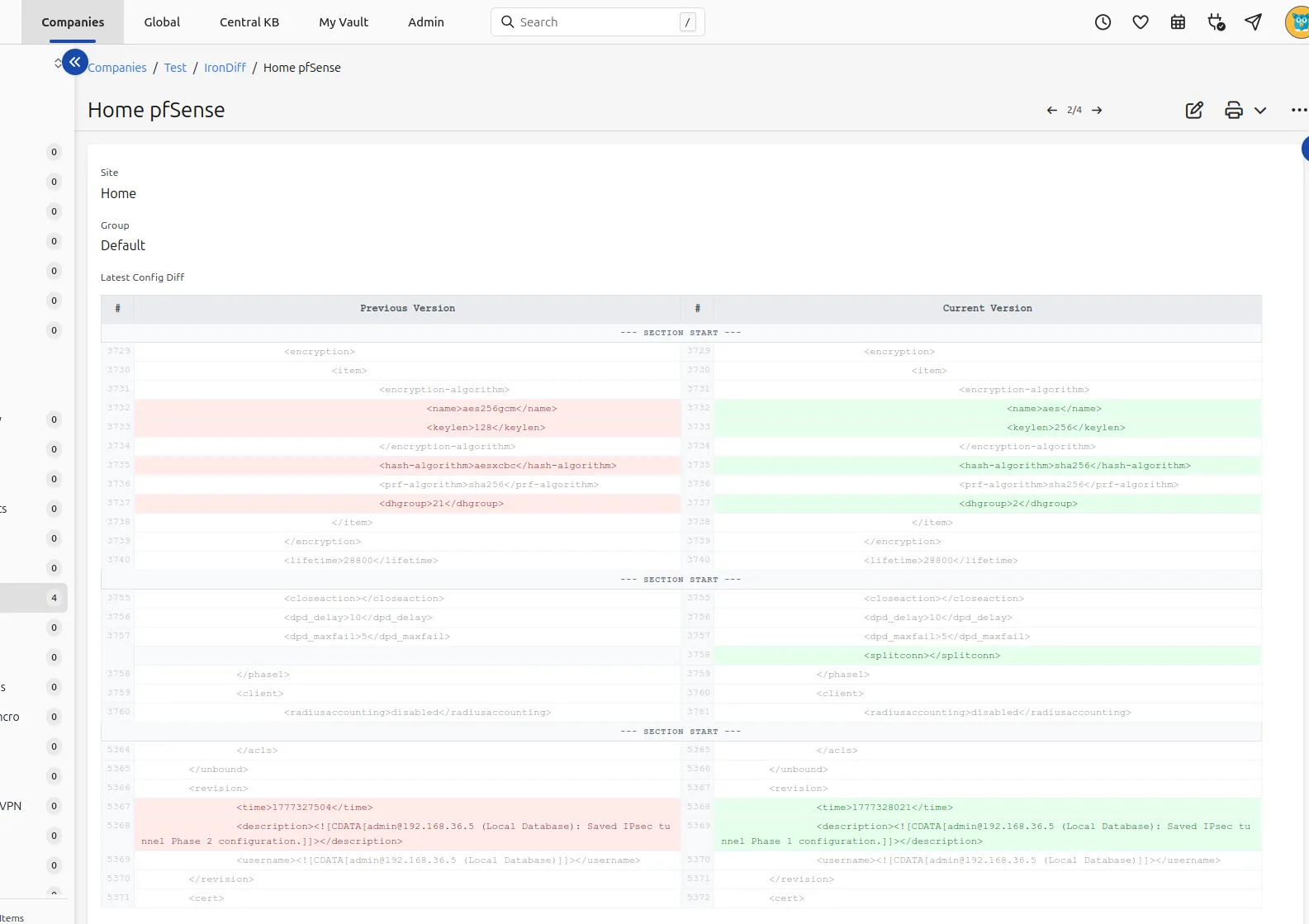
A live IronDiff asset inside Hudu, showing a visual diff of what changed in the pfSense configuration.
The first time IronDiff syncs to your Hudu instance, it automatically creates an IronDiff asset layout. You don’t need to configure this manually — IronDiff handles the layout creation, field definitions, and updates.
If you need to customize the layout appearance in Hudu (icon, color, etc.), you can edit the layout in Hudu’s admin panel without breaking the sync.
Troubleshooting
- Test Connection fails: Verify your Base URL doesn’t have a trailing slash and that the API key has full access permissions in Hudu.
- Companies not appearing: Click Refresh Company List in the mapping dialog. Hudu’s API paginates results, so it may take a moment to load all companies.
- Devices not syncing: Ensure the device’s Site is mapped to a Hudu company. Unmapped sites are skipped.
- Diff not updating: IronDiff only syncs when a configuration actually changes. If the config is identical to the previous version, no Hudu update is triggered.
Ready to deploy IronDiff?
Start with a free 14-day Professional trial — no credit card required.